

Accounts & Portfolios
Add and configure accounts, organize them into groups, and build portfolios — named reporting scopes across accounts.
Accounts are where your money lives; portfolios are how you slice across them. Both are managed under Settings → Accounts and Settings → Portfolios.
Accounts
Open Settings → Accounts to see every account, search, and filter by All / Active / Hidden / Archived. Click Add account to create one.
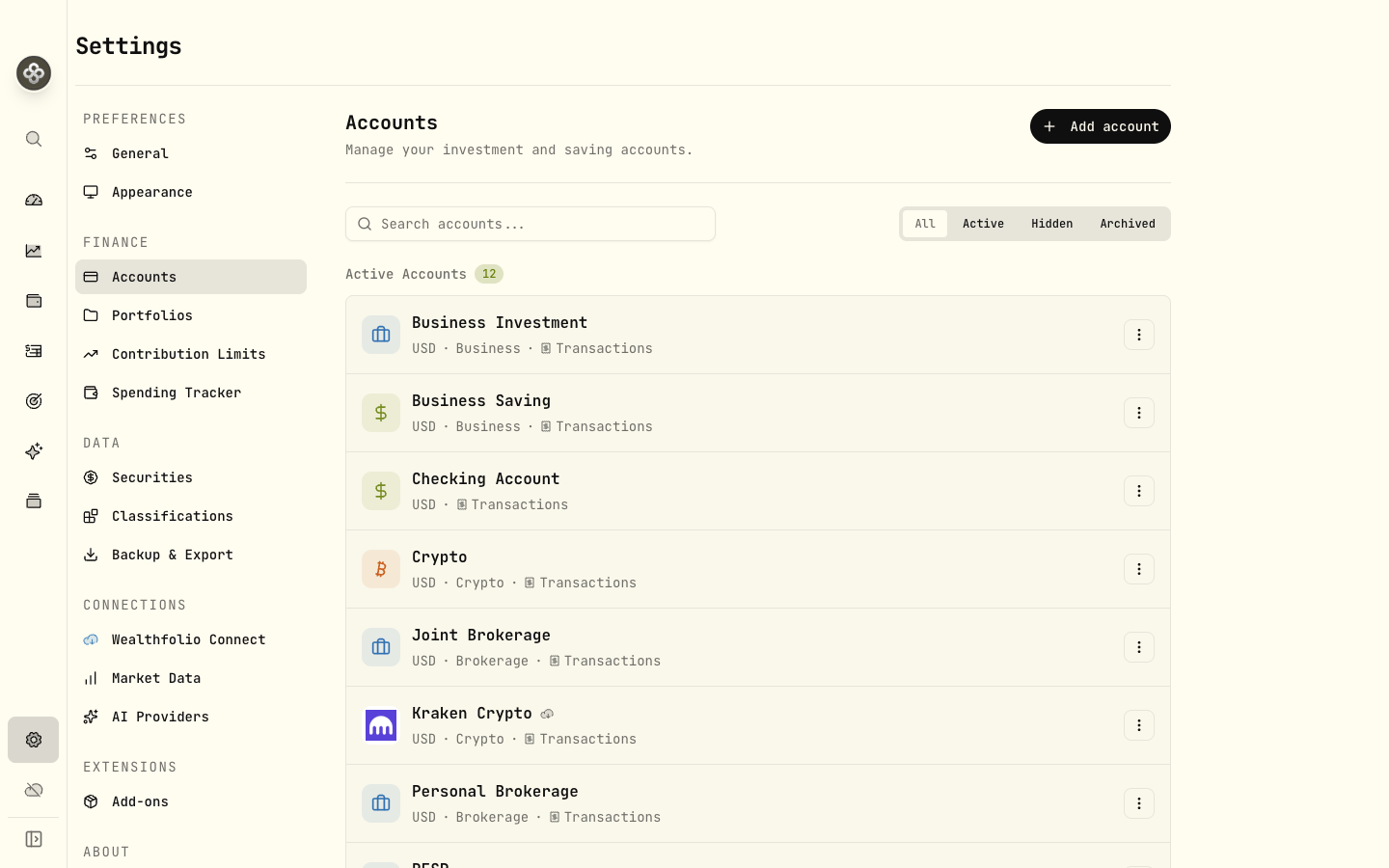
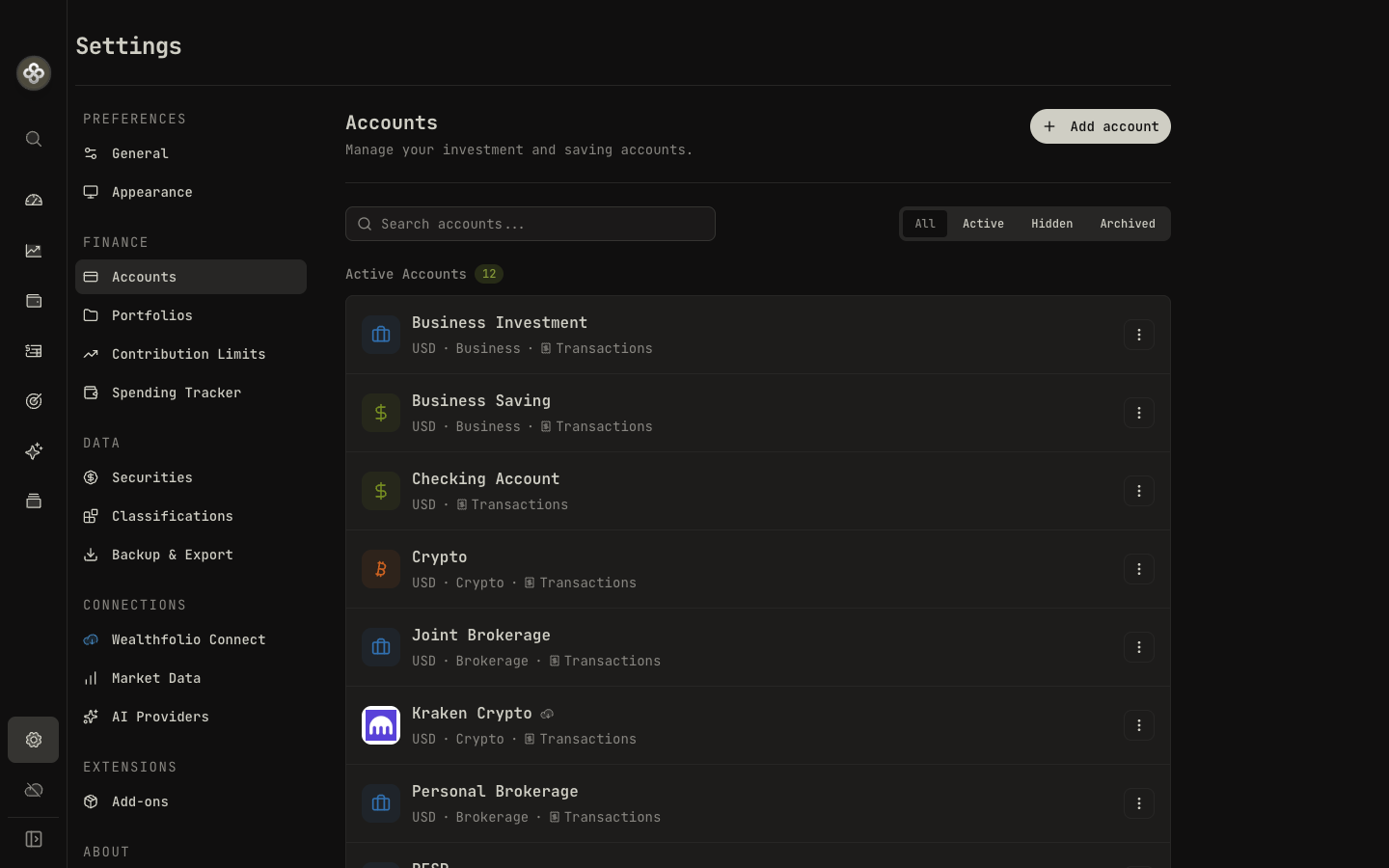
Account fields
| Field | Description |
|---|---|
| Account Name | A descriptive name (e.g. “Joint Brokerage”, “RRSP”). |
| Account Group | An optional label to organize accounts (e.g. 401k, RRSP, Cash Savings). Same-group accounts collapse together on the dashboard. |
| Account Type | Brokerage (securities), Cash (bank / savings), or Crypto. |
| Tracking Mode | Transactions (every buy, sell, dividend…) or Holdings (period-end balance snapshots). See Tracking Modes. |
| Account Currency | The account’s native currency. Balances are converted to your base currency for totals. |
| Is Default | Marks the account pre-selected for quicker activity entry. |
Account status
Each account is in one of three states:
- Active — included everywhere: dashboard totals, performance, and reports.
- Hidden — kept in the app and still viewable, but left out of dashboard totals.
- Archived — removed from the active list (and calculations) without deleting its history. You can restore it at any time.
Deleting an account is permanent and removes all of its activities — archive instead if you just want it out of the way.
Account groups
A group is a free-text label on an account. Accounts that share a group roll up under one heading on the home dashboard (handy for “Spouse RRSP”, “Joint Taxable”, or “401k”). Groups are display-only — they don’t change any calculations.
Portfolios
A portfolio is a named reporting scope across a chosen set of accounts. Where groups just tidy up the dashboard, a portfolio becomes a first-class lens you can select anywhere the account picker appears — the Dashboard, Performance, Insights, Income, and Holdings.
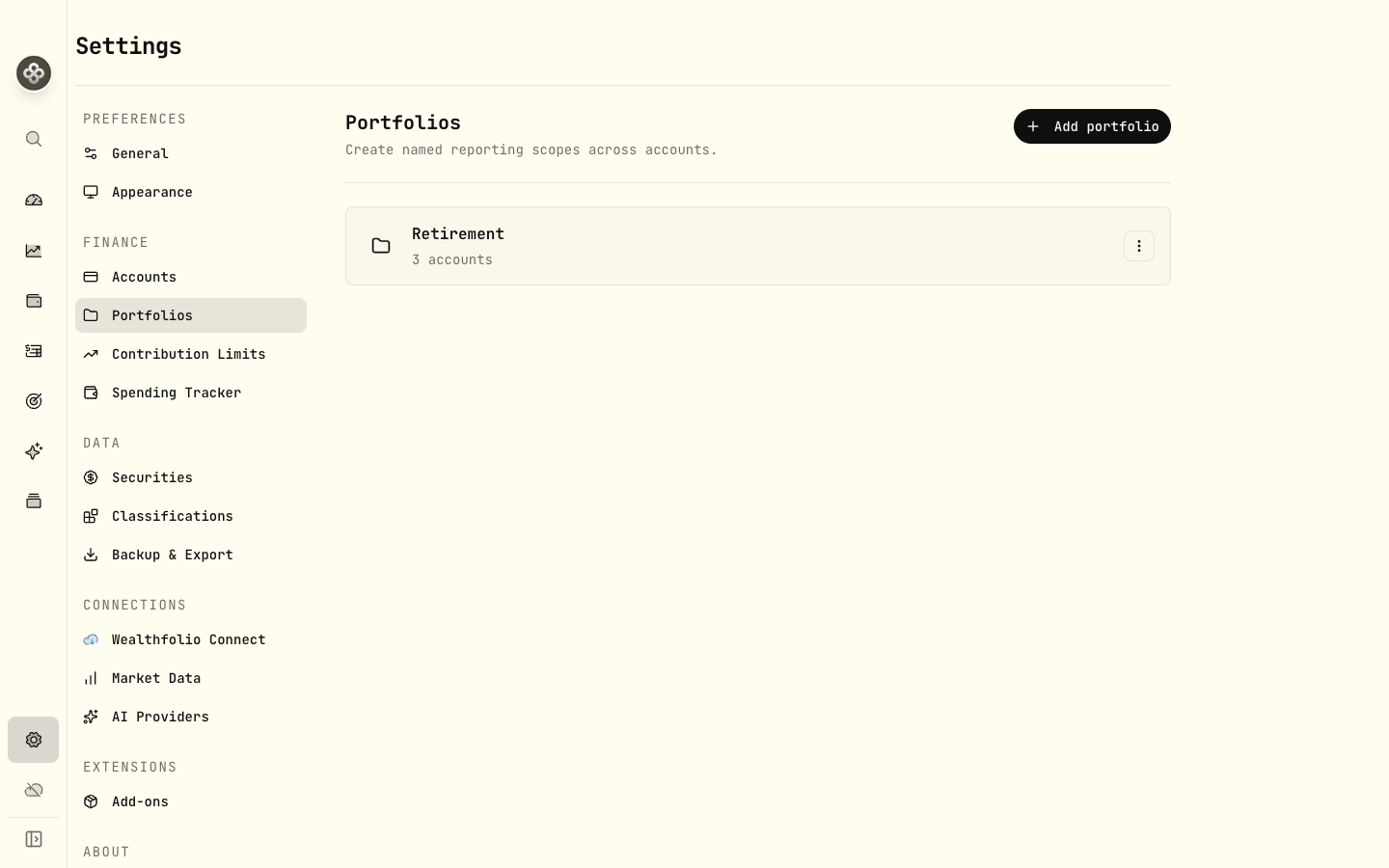
Creating a portfolio
- Go to Settings → Portfolios and click Add portfolio.
- Give it a name (e.g. “Retirement”, “Taxable”, “FIRE pot”) and an optional description.
- Select the accounts that belong to it. An account can appear in any number of portfolios.
- Click Save. The portfolio now appears in the account selector across the app.
Reorder portfolios by dragging; edit or delete one from its ⋮ menu. If a portfolio references an account you later delete, Wealthfolio flags it so you can clean up the link.
Using a portfolio
Open the account selector at the top of the Dashboard (or Performance, Insights, Income, Holdings) and pick a portfolio instead of All accounts or a single account. Every number on the page — value, returns, allocation, income — is then computed for just that subset.
This is how you answer questions like “how are my retirement accounts doing together?” or “what’s my taxable allocation?” without merging or moving anything.
Portfolios are purely a reporting overlay. Adding an account to a portfolio doesn’t move any holdings or change your overall totals — it just gives you another way to look at them.
Next: Dashboards shows how each card reads, and Tracking Modes explains transactions vs. holdings accounts.