

Settings
Configure Wealthfolio — base currency and timezone, accounts and portfolios, data, market-data and AI connections, and appearance.
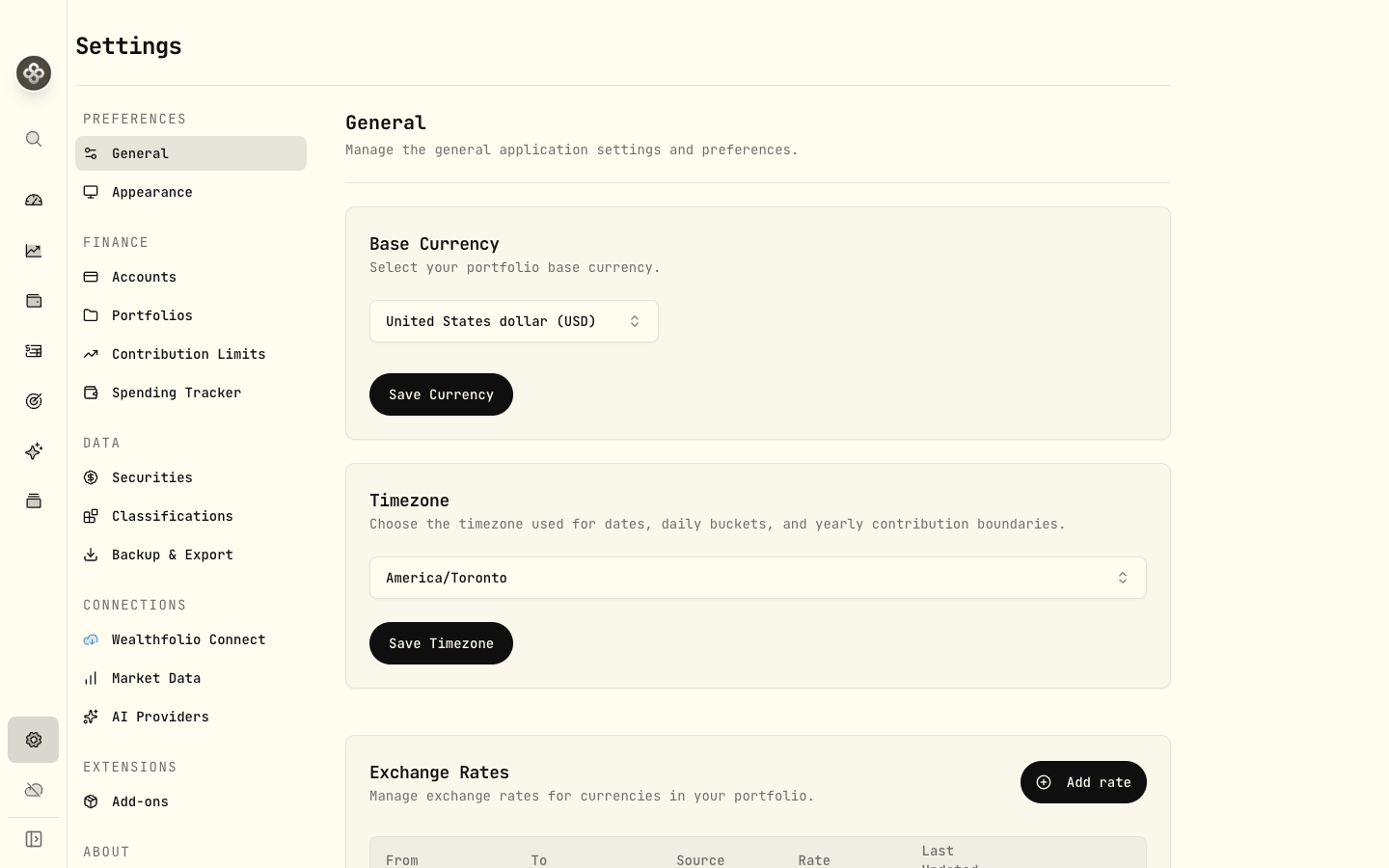
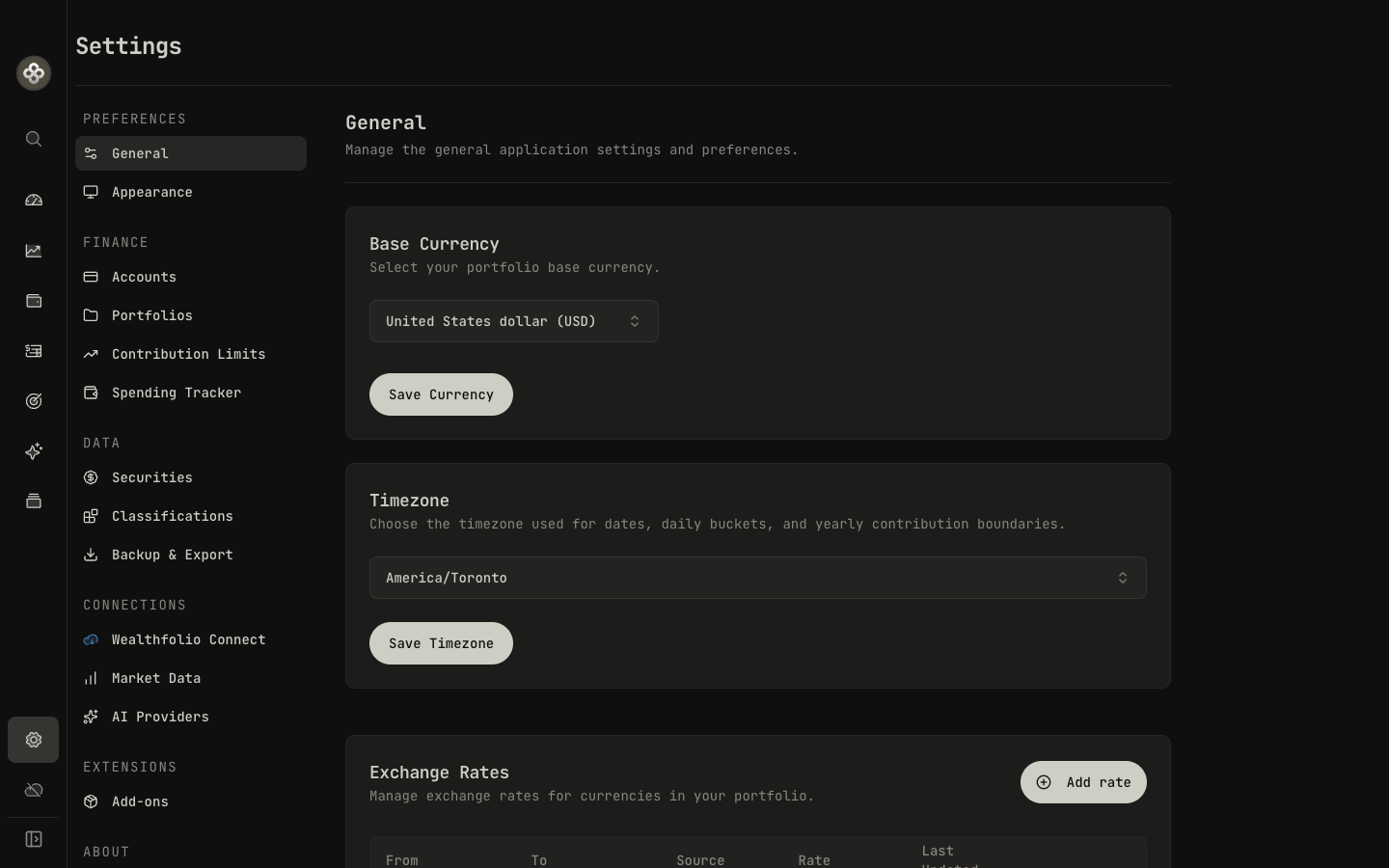
Open Settings from the bottom of the sidebar. Options are grouped into Preferences, Finance, Data, Connections, and Extensions, plus About.
Preferences
General
- Base Currency — the currency every total and report is converted to. All balances and transactions are converted using market exchange rates (see Exchange rates).
- Timezone — the timezone used for dates, daily buckets, and yearly contribution-limit boundaries.
- Automatic Updates — when enabled, Wealthfolio checks for app updates on startup.
Exchange rates
Exchange rates are added and refreshed automatically from your market-data providers. The General page lists the current rates so you can review them, and lets you add a custom rate for any pair the providers don’t cover:
- Click Add rate.
- Choose the From and To currencies and enter the rate.
- Save.
Wealthfolio also handles currency variants automatically — for example pence vs. pounds
(GBp ↔ GBP, 100 : 1) for securities priced in cents.
Manually added rates aren’t auto-updated, so review them periodically.
Appearance
- Theme — Light, Dark, or follow your system.
- Font — choose Mono, Serif, or Sans for the interface.
Finance
Accounts
Add, edit, group, hide, or archive your accounts, and set tracking mode and currency. See the Accounts & Portfolios guide.
Portfolios
Build named reporting scopes across a set of accounts, then select them from the account picker anywhere in the app. See Accounts & Portfolios.
Contribution Limits
Track contribution room for tax-advantaged accounts (IRA, 401(k), TFSA, RRSP…). See Contribution Limits.
Spending Tracker
Opt accounts into spending, manage categorization rules, budgets, and life events. See Spending & Budgets.
Data
Securities
Review and manage the instruments in your portfolio — tickers, custom/alternative assets, and their data settings.
Classifications
Edit the taxonomies (asset class, industry/sector, region, risk, and custom groups) that power Portfolio Insights and Allocation Targets. AI can help fill in missing tags.
Backup & Export
Export your data or back up your local database. See Export & Backup.
Connections
Wealthfolio Connect
Optional, end-to-end-encrypted brokerage and device sync. See Connect & Broker Sync.
Market Data
Choose which built-in providers are active and add your own. See Market Data Providers.
AI Providers
Connect an AI provider (or a local model) and pick a default model for the AI Assistant.
Extensions
Add-ons
Install and manage community add-ons that extend Wealthfolio. See Add-ons.
About
App version, links, and update controls.