
Connect & Broker Sync
Automatically pull activities from your brokerage and sync your data across devices, privately and end-to-end encrypted.
Last updated
Wealthfolio Connect is an optional paid service that adds two things on top of the free local-first app:
- Automatic broker sync. Activities pulled directly from your brokerage, no CSV exports required.
- End-to-end encrypted device sync. Keep desktop, iOS, Android, and self-hosted instances in step without anyone (us included) being able to read your portfolio.
The core app stays exactly the same with or without Connect. This guide covers what Connect does, what it doesn’t, and how to set it up.
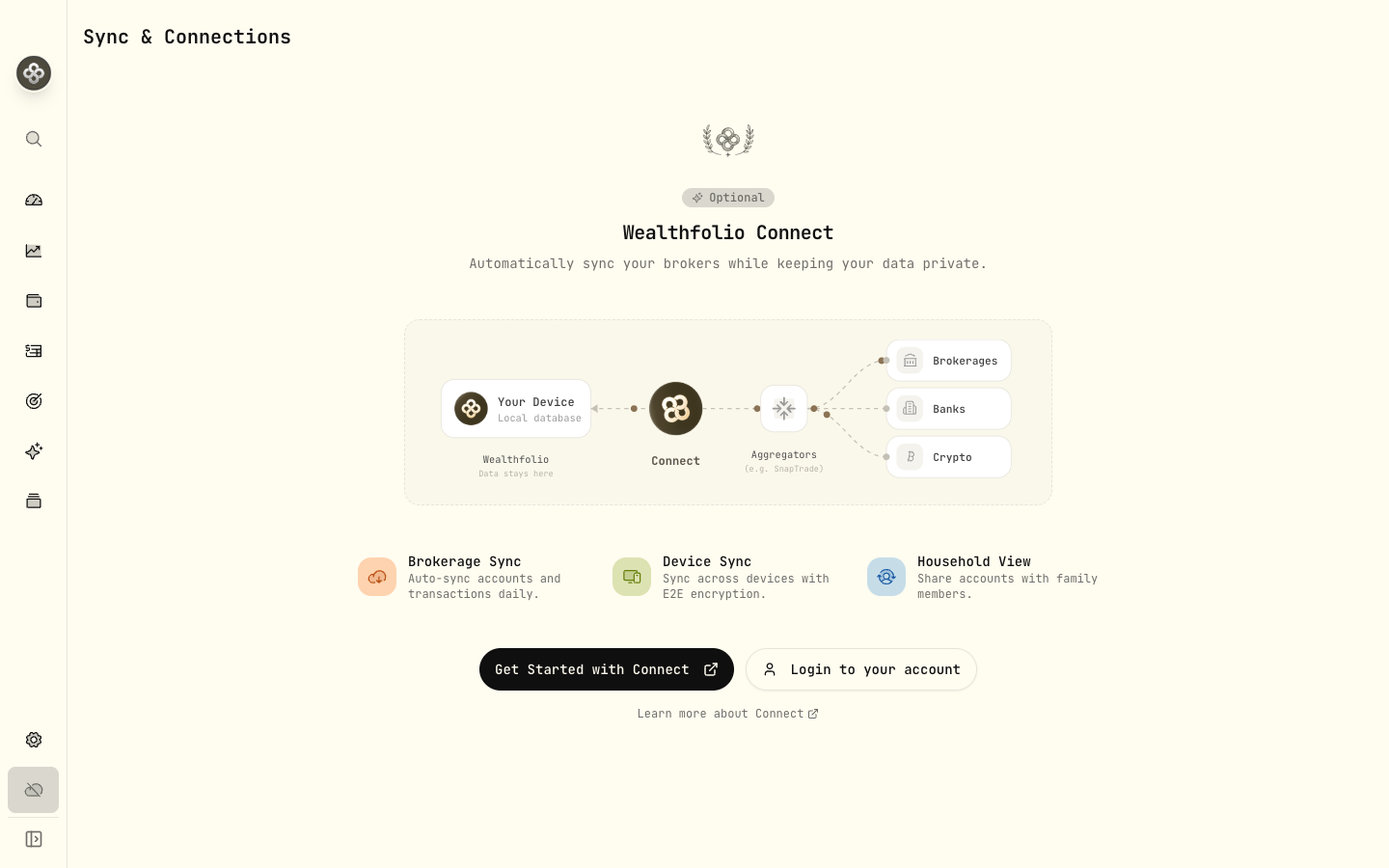
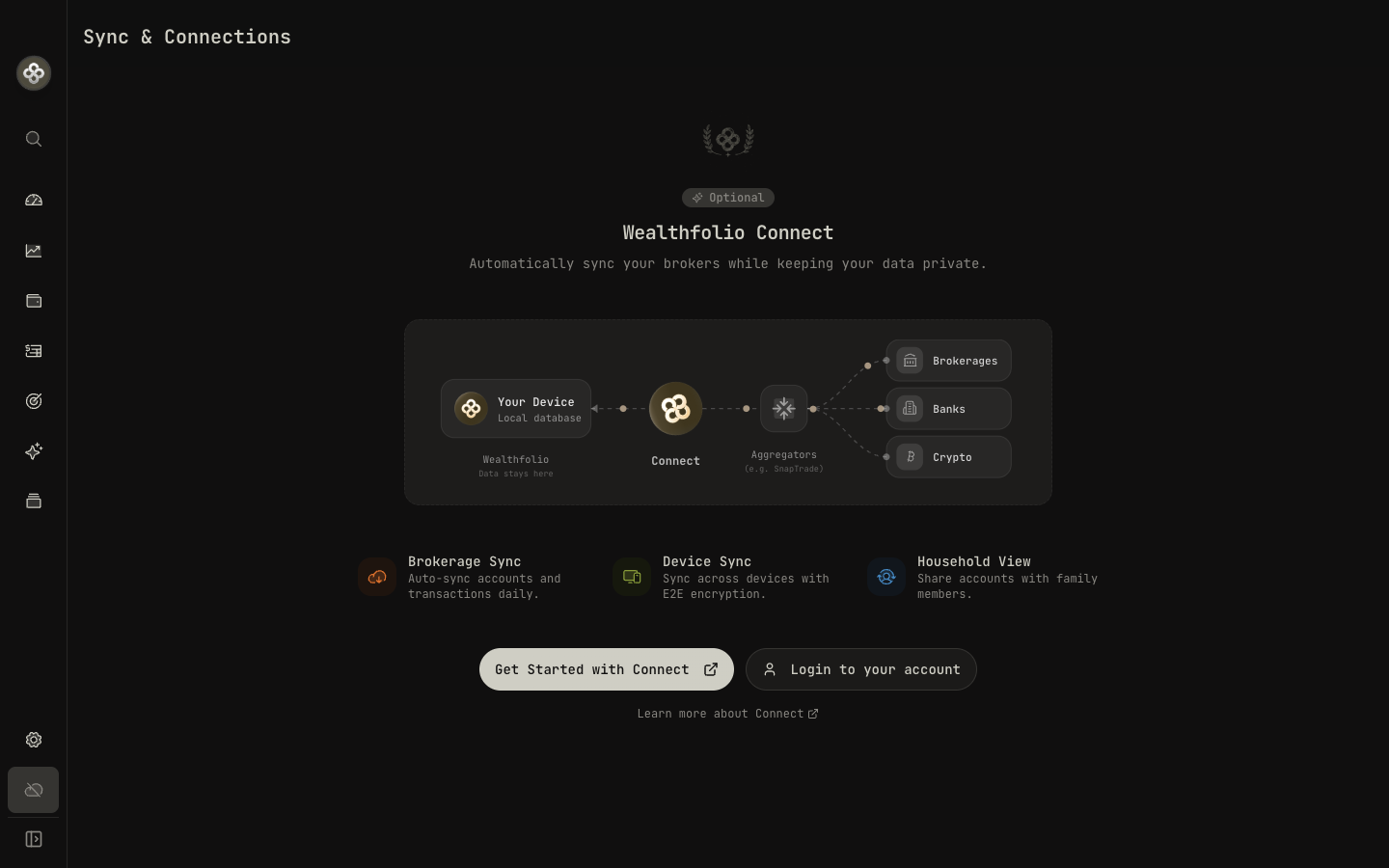
Wealthfolio Connect — sync brokers and devices while your data stays on your device
Checking imported amounts
The saved amount is the final cash paid or received, including fees and taxes. If an imported total conflicts with the trade details, Wealthfolio keeps it and marks it Needs review. Incomplete final amounts can leave an imported row as Draft. Check the row against your broker statement. The review flag is separate from the activity status: a flagged Posted row still affects balances. See Activity Fields for the rules.
When upgrading to 3.8, update all devices using device sync before adding or editing activities, so they use the same amount rules.
1 · What Connect does (and doesn’t)
| Feature | Free core | Connect |
|---|---|---|
| Local SQLite database, full data ownership | ✅ | ✅ |
| Manual entry + CSV import | ✅ | ✅ |
| Market data (Yahoo + custom providers) | ✅ | ✅ |
| Performance metrics, goals, FIRE, contribution limits | ✅ | ✅ |
| Self-hosting | ✅ | ✅ |
| AI assistant (BYO API key) | ✅ | ✅ |
| Automatic broker sync (SnapTrade integration) | — | ✅ |
| Multi-device sync (E2E encrypted) | — | ✅ |
| Household / family sharing (share selected accounts) | — | ✅ |
Connect is opt-in. If you only want manual + CSV imports, you never need it.
2 · Supported brokerages
Connect uses SnapTrade to talk to your broker. SnapTrade supports the major US, Canadian, and select international brokers. Full list at /connect/brokerages.
Highlights:
- US: Fidelity, Schwab, Robinhood, E*Trade, Webull, Public, TradeStation, tastytrade
- Canada: Questrade, Interactive Brokers
- International: Interactive Brokers (global), Trading 212, Kraken (crypto), Coinbase (crypto), Binance (crypto)
If your broker isn’t listed, request it via SnapTrade’s coverage form. Support tends to expand quickly.
3 · Set up broker sync
- Subscribe to Connect at wealthfolio.app/connect.
- Sign in to Connect from the desktop, iOS, or Android app via Settings → Connect.
- Link a brokerage: Settings → Connected Accounts → Add brokerage. You’ll be redirected to SnapTrade’s hosted connection portal. Depending on the institution, you may authorize OAuth on the brokerage website, provide broker-issued API credentials or a reporting token, or authenticate inside the hosted portal. Wealthfolio requests a read-only connection in every case.
- First sync runs immediately and pulls the history the connection makes available. The range varies by brokerage and account. Subsequent syncs run automatically once per day, or on demand via Sync now.
Wealthfolio never receives your broker password. When OAuth is available, you sign in on the brokerage website. For a non-OAuth connection, credentials or API tokens are entered directly into SnapTrade’s hosted portal and stored there encrypted so SnapTrade can maintain the connection. SnapTrade returns the authorized account data through Wealthfolio Connect to your device over encrypted channels.
4 · How synced data lands in Wealthfolio
Each linked brokerage creates one or more Connect accounts in Wealthfolio. They look like manual accounts, except:
- Activities flow in automatically. You can correct imported activities; user edits are tracked and protected during broker sync. Check flagged rows against your statement rather than adding another activity for the same event.
- Each Connect account shows its last sync time and a status badge (synced, syncing, error).
- You can mix synced and manual activities in adjacent accounts; performance metrics combine them seamlessly.
5 · Multi-device sync
Once Connect is active, devices linked to the same Connect account stay in sync:
- Sign into Connect on each device (desktop, iOS, Android, self-hosted).
- Wealthfolio generates a device-specific keypair on first sign-in.
- Changes are encrypted on-device with your account key and pushed to Connect’s storage tier.
- Other devices pull the encrypted blobs and decrypt locally.
We can’t read the encrypted blobs. If you lose every device, you can recover by linking a new device with your account credentials. But if you also lose your account credentials, the data is unrecoverable. (That’s the deal with E2E encryption.)
Back up your data. E2E means we cannot recover your portfolio for you. Periodically export a full database SQL (Export & Backup) and store it somewhere you trust.
6 · Renaming and grouping Connect accounts
By default, Connect accounts inherit names from your broker (“Joint Brokerage 1234…” gets ugly fast). To clean up:
- Rename: Settings → Accounts → click the synced account → Edit → set a display name. The display name is local; the underlying SnapTrade link is unchanged.
- Group: Use Account Groups to roll up multiple Connect accounts (e.g. “Joint”, “Solo IRA”, “Spouse RRSP”) into one logical bucket for dashboard rollups.
7 · Known limitations
- Joint accounts: SnapTrade returns the same joint account once per linked login. If both spouses link the same brokerage, the joint account appears twice. Disable one of the duplicates from Settings → Accounts (toggle Active off) rather than deleting it. Deletion breaks the Connect link.
- Single-active connection brokers: E*Trade and a few others only allow one active SnapTrade session per user. Re-authenticating on a second device disconnects the first.
- Incomplete activities: brokers occasionally publish reinvestments with no share count or trades with no price. Rows that cannot be completed can be imported as Draft with Needs review. Check their status and complete the missing details before confirming them as Posted.
8 · Disconnecting
To remove a brokerage link: Settings → Connected Accounts → select the brokerage → Disconnect. The Connect account stays in Wealthfolio (with all its synced history) but won’t sync again. To delete the account entirely, also remove it from Settings → Accounts.
9 · Troubleshooting
Sync failed with “authentication error”
Your broker’s OAuth token expired (most brokers expire after 90 days). Settings → Connected Accounts → click the failing brokerage → Reauthorize.
A synced activity looks wrong
Open the activity and correct the relevant details, including its final amount and currency. User changes are tracked so broker sync can protect them. If a sync is consistently wrong, such as importing totals in the wrong currency, file a ticket via Discord. We forward to SnapTrade when needed.
Sync is stuck on “syncing…” for hours
Cancel and retry: Settings → Connected Accounts → Sync now. If it fails again, disconnect and reconnect the brokerage.
Next step: Once your brokers are syncing, the Health Center will flag any inconsistencies between synced data and what Wealthfolio expects (negative cash, missing deposits, stale quotes).