
Settings Reference
Configure Wealthfolio — base currency and timezone, language and region formats, accounts and portfolios, data, market-data and AI connections, and appearance.
Last updated
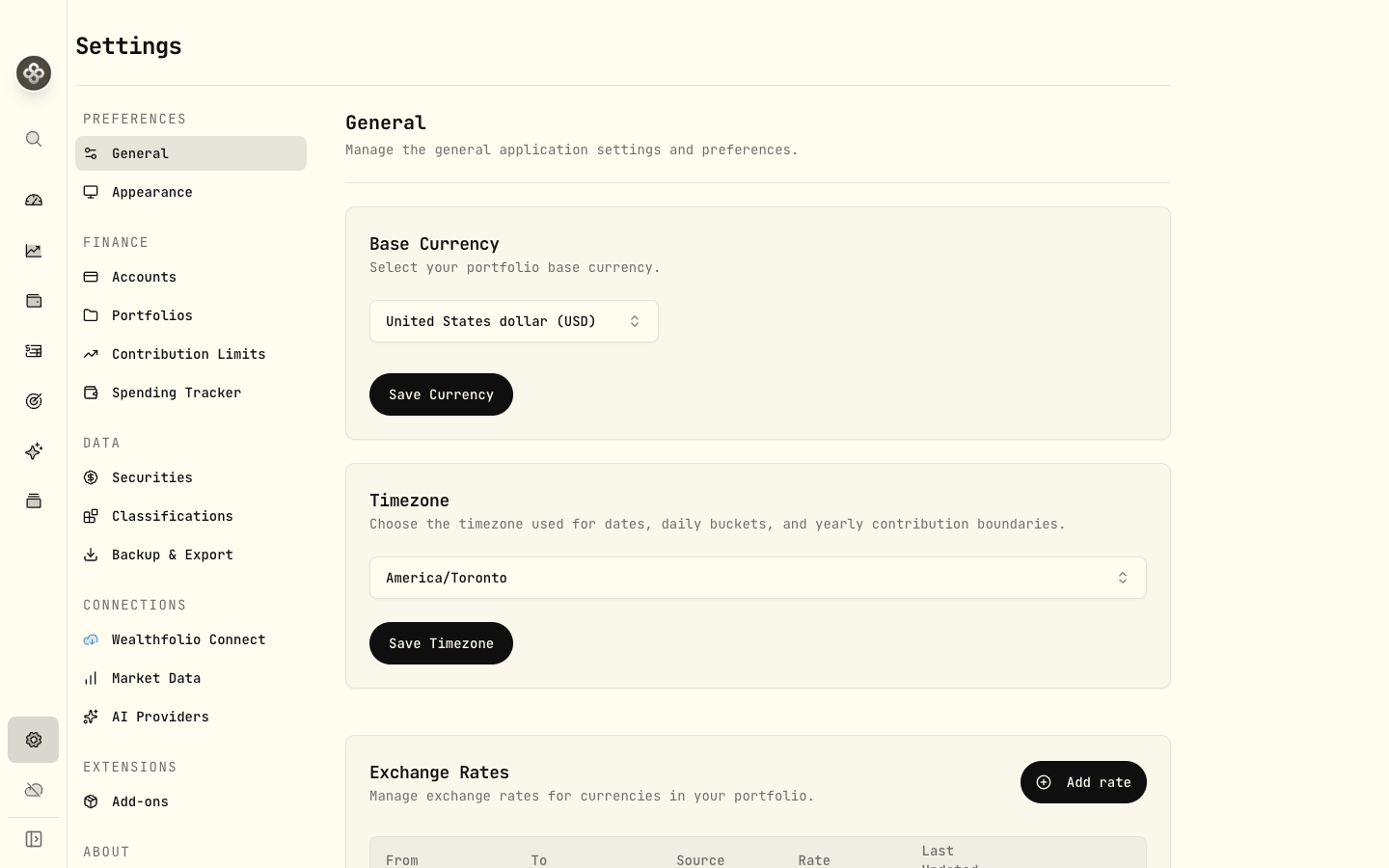
Open Settings from the bottom of the sidebar. Options are grouped into Preferences, Finance, Data, Connections, and Extensions, plus About.
Preferences
General
Base Currency is the reporting currency for consolidated portfolio values. Changing it changes how those values are presented; it does not rewrite the currencies on your accounts, activities, or security quotes. Choose a currency and click Save. See Market Data & FX for how conversions work.
Language & Region
These controls live on the General page and save when you change them:
- Language changes interface text independently of number and date formatting. Supported languages include English, French, German, Spanish, Brazilian Portuguese, Italian, Simplified Chinese, Traditional Chinese, Japanese, and Korean.
- Region & formats controls date order, decimal separators, percentages, currency presentation, and 12- or 24-hour time. Choose System, Canada, United States, United Kingdom, France, Germany, Spain, Mexico, Brazil, Portugal, China, Taiwan, Japan, South Korea, or Italy. System follows the locale reported by your browser or app environment, including regions without a dedicated option. Check the live date, number, currency, and time previews.
- Timezone controls local date and time display and date boundaries, including annual contribution periods. Select the timezone you want Wealthfolio to use.
Amount fields accept your region’s decimal separator. Changing the interface language alone does not change your financial formatting conventions.
Exchange rates
Review currency pairs, their rates, sources, and timestamps under General. To add a pair:
- Click Add rate and choose the From and To currencies.
- Choose a Source. For Manual, enter a rate greater than zero. For a market-data provider, Wealthfolio fetches the rate instead of asking you to enter it.
- Save the pair.
The direction matters: a rate of 1.35 from USD to CAD means USD 1 is CAD 1.35.
You can edit a manual rate in the table. Provider rates are refreshed through market-data
sync and cannot be edited inline. You can also delete a pair after confirming; if your
holdings or activities need it, you may need to recreate it for accurate calculations.
Wealthfolio handles currency variants such as pence and pounds (GBp and GBP) automatically.
See Market Data & FX for conversion behavior and
Market Data Providers for provider configuration.
Manual rates are not refreshed automatically. Review them periodically.
Automatic Updates
Enable startup update checks for the desktop app. The switch saves immediately and controls checking for updates, not unattended installation. This section is hidden on mobile. Self-hosted deployments are updated through their hosting setup; see Self-hosting.
Appearance
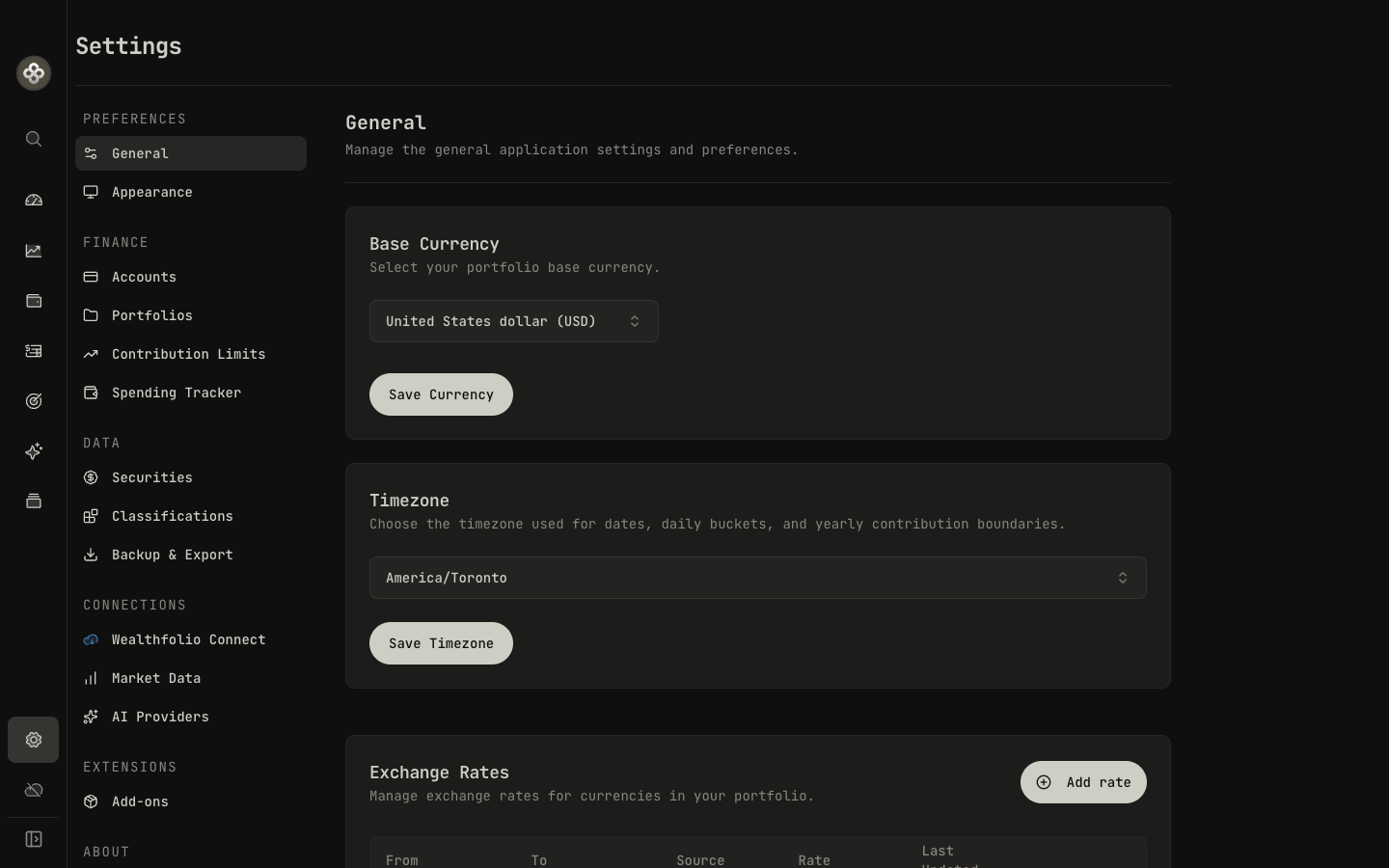
- Theme: Light, Dark, or follow your system.
- Font: Mono, Serif, or Sans for the interface.
- Navigation style: Sidebar or Floating Bar.
- Show menu bar: show or hide the application menu bar.
Appearance changes save as you make them. Navigation style and menu bar controls are hidden on mobile.
Finance
Accounts
Add, edit, group, hide, or archive your accounts, and set tracking mode and currency. See the Accounts & Portfolios guide.
Portfolios
Build named reporting scopes across a set of accounts, then select them from the account picker anywhere in the app. See Accounts & Portfolios.
Contribution Limits
Track contribution room for tax-advantaged accounts (IRA, 401(k), TFSA, RRSP…). See Contribution Limits.
Spending Tracker
Opt accounts into spending, manage categorization rules, budgets, and life events. See Spending & Budgets.
Data
Securities
Review and manage the instruments in your portfolio, including their details and data settings. See Assets & Securities for the full guide.
Classifications
Edit the classifications (asset class, industry/sector, region, risk, and custom groups) that power Portfolio Insights and Allocation Targets. AI can help fill in missing tags. See Classify your assets for assignments, weights, and custom classifications.
Backup & Export
Use the Backup tab to create or restore a database backup and the Export tab for CSV, JSON, or SQLite exports. Desktop and iOS support restore in the app. Web mode lets you create, download, and delete server backups; restoration requires stopping the server. See Export & Backup for steps and platform differences.
Connections
Wealthfolio Connect
Connect a brokerage to import holdings and activities, or sync your data between devices. Device sync uses end-to-end encryption. See Connect & Broker Sync.
Market Data
Enable providers, configure API keys, set provider priority, and review sync status or errors. You can also add custom providers and override the provider or symbol for an individual security. See Market Data Providers.
AI Providers
Connect a hosted provider or local model, enable the providers and models available in the chat picker, and control each provider’s data access. Advanced options include custom endpoints and provider tuning. See AI provider settings for keys, model capabilities, and save behavior.
AI Agent Access
Start or stop the MCP server, configure auto-start and audit logging, and create or revoke scoped access tokens. Desktop and web controls differ; this entry is hidden in mobile Settings. See MCP Server.
Extensions
Add-ons
Install and manage community add-ons that extend Wealthfolio. See Add-ons.
About
Review the app version and project links. Desktop update controls let you check for a new release; update availability depends on your platform.