
MCP Server — Connect AI Agents
Connect Wealthfolio to external AI agents — Claude Code, Codex, ChatGPT desktop, Cursor, Windsurf, Cline, VS Code — over the Model Context Protocol, with scoped, revocable access tokens.
Last updated
Wealthfolio’s MCP server lets external AI agents talk to your portfolio over the Model Context Protocol. Point Claude Code (including Claude Desktop’s Code tab), Codex, the ChatGPT desktop app, Cursor, Windsurf, Cline, or any MCP-capable client at Wealthfolio and it can read your holdings, performance, and activities — and, if you allow it, draft or record new activities — through the exact same typed tools the built-in AI Assistant uses.
Every connection is authenticated with a scoped access token you create and can revoke. Nothing is exposed until you turn the server on and hand out a token.
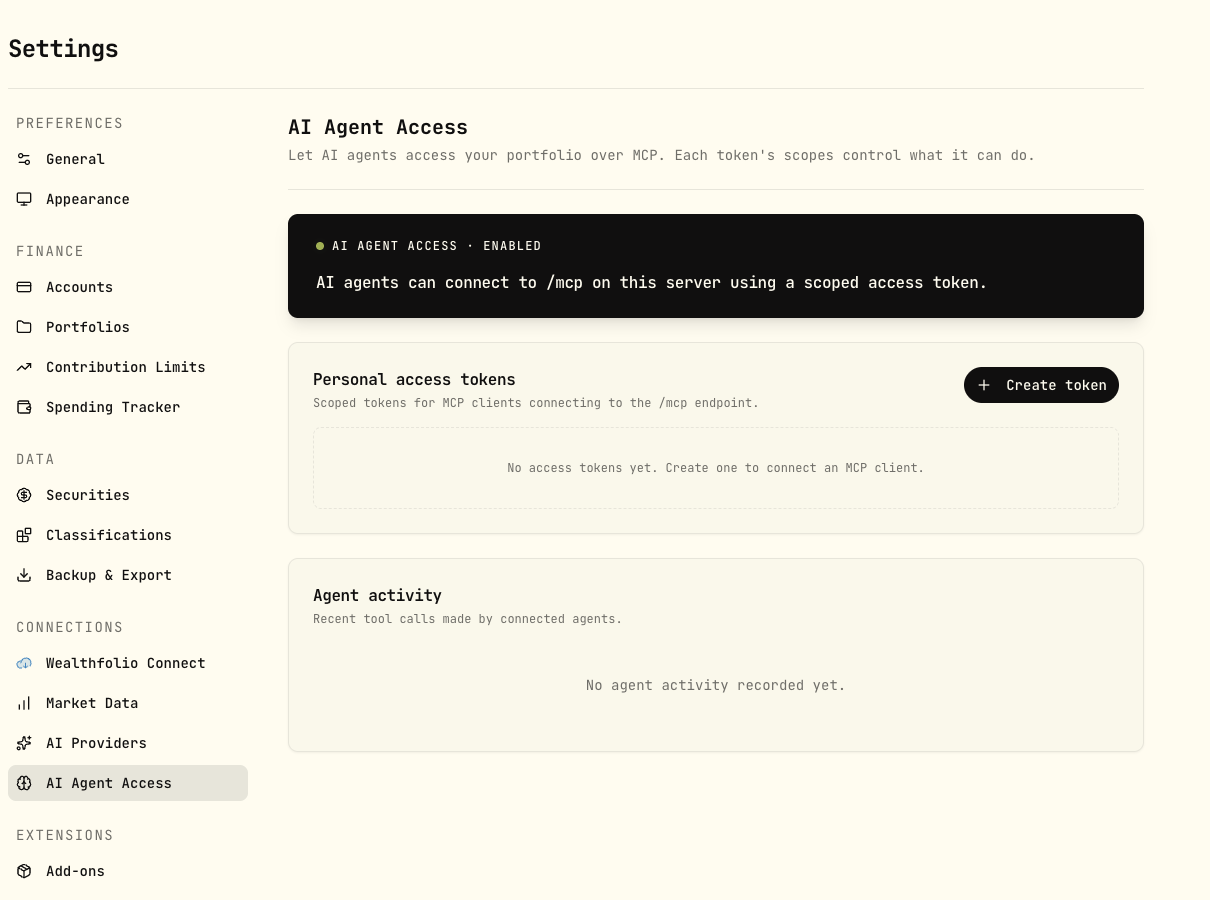
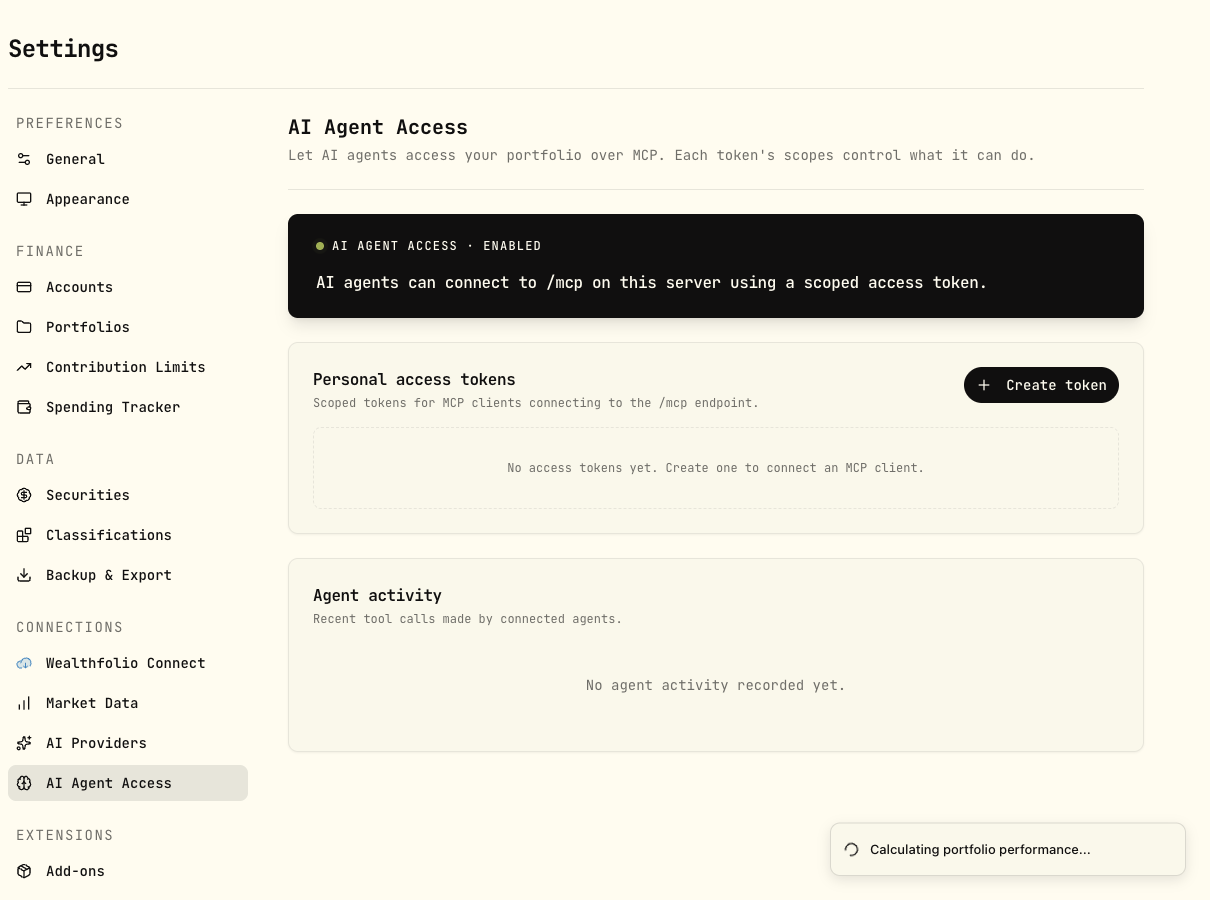
Assistant vs. MCP server. The AI Assistant is a chat window inside Wealthfolio. The MCP server is the reverse: it lets an agent running outside Wealthfolio (in your editor or desktop client) reach into your portfolio. Both run over the same local, typed tool registry — your raw database is never handed to a model.
1 · Where it lives
Open Settings → AI Agent Access. What you see depends on how you run Wealthfolio:
- Desktop app — a master toggle turns the feature on, then a local MCP server runs at
http://127.0.0.1:<port>/mcp. You control it with Start/Stop, choose whether it starts with the app, and toggle audit logging. - Self-hosted / web server — the endpoint is enabled with an environment variable
(see §6) and served at
/mcpon the same origin as your server. Token management and the audit log work the same way.
Agent Access is a desktop and web feature. It isn’t available on the mobile app.
2 · Turn it on and create a token
- Enable the server. Flip the master toggle (desktop) or set the environment variable (self-hosted). On desktop, press Start — the endpoint URL appears with a green dot when it’s live.
- Create an access token. Under Personal access tokens, click Create token, name it (e.g. “Claude Code”), pick an expiry, and choose its scopes. Tokens default to read-only — one click away from the common case.
- Copy the token once. It’s shown a single time at creation. The dialog also gives you ready-to-paste setup for Claude Code, Codex, or JSON-config clients, with the token already embedded.
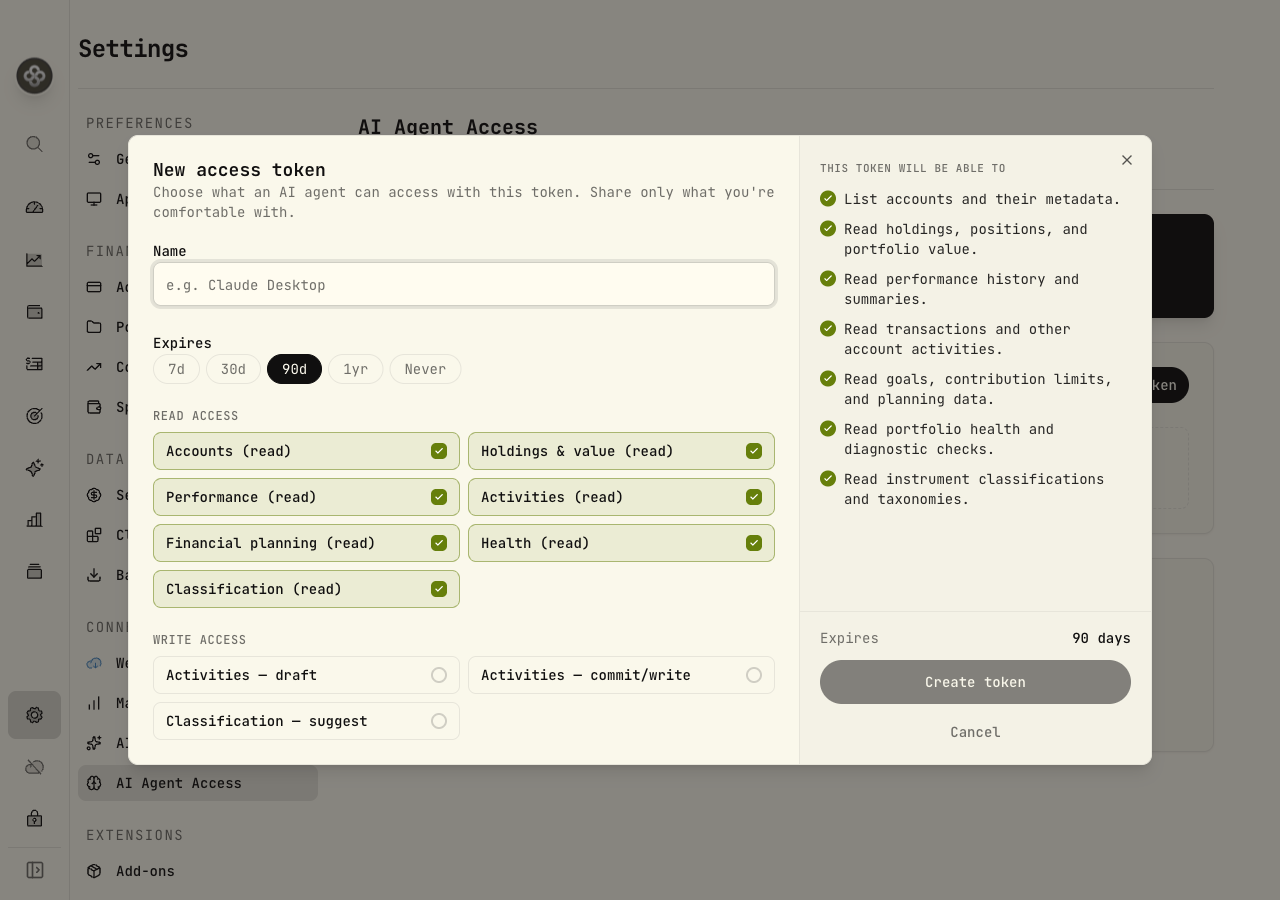
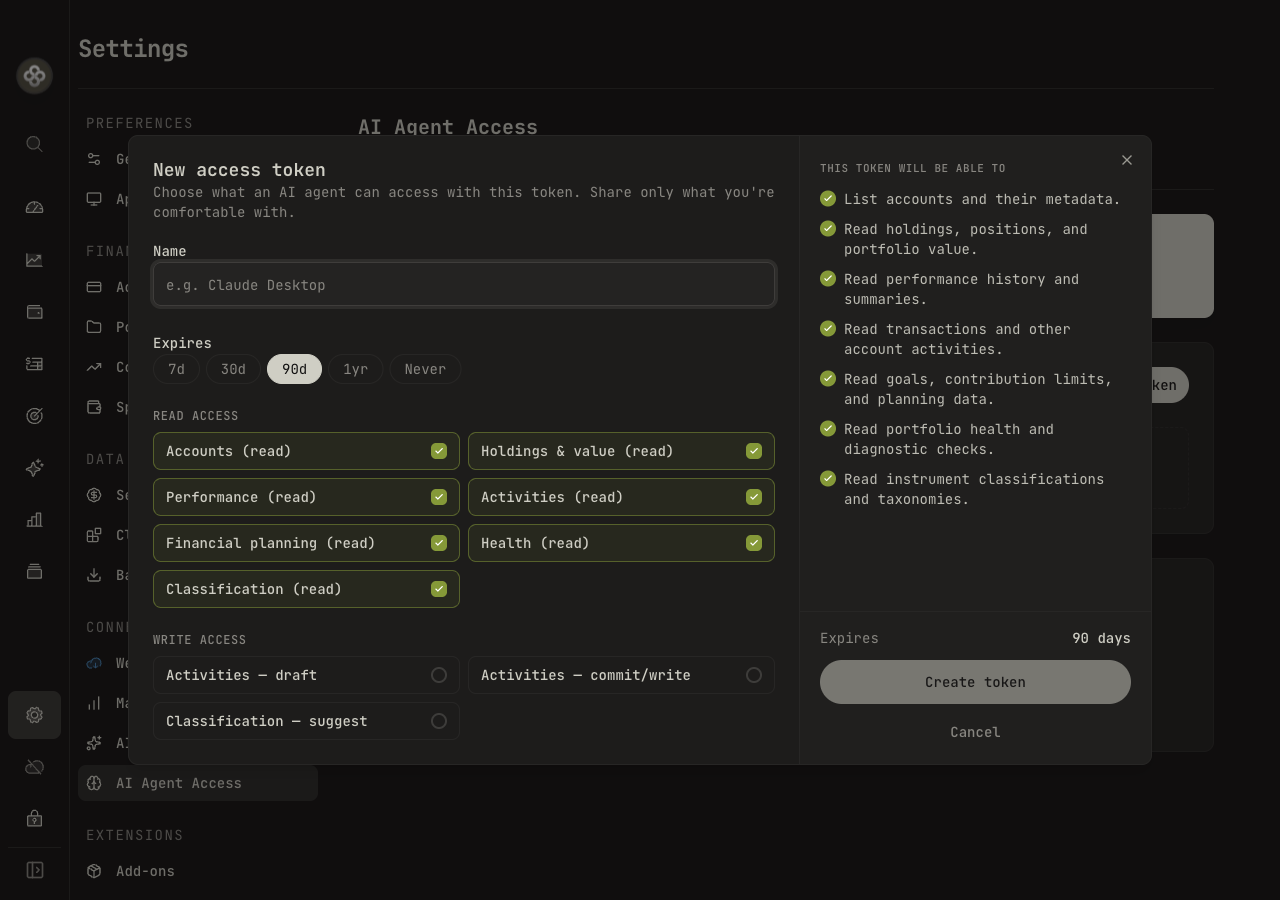
Expiry options are 7 days, 30 days, 90 days (default), 1 year, or no expiry. Shorter is safer — you can always mint a new one.
3 · Scopes — what a token can do
A token carries a set of scopes. The agent can only call tools its scopes allow; the backend rejects anything outside them. Scopes split into read and write.
Read access
| Scope | Grants |
|---|---|
| Accounts (read) | List accounts and their metadata. |
| Holdings & value (read) | Read holdings, positions, and portfolio value. |
| Performance (read) | Read performance history and summaries. |
| Activities (read) | Read transactions and other account activities. |
| Financial planning (read) | Read goals, contribution limits, and planning data. |
| Health (read) | Read portfolio health and diagnostic checks. |
| Classification (read) | Read instrument classifications and taxonomies. |
Write access
| Scope | Grants |
|---|---|
| Activities — draft | Prepare draft activities for review (nothing is committed). |
| Activities — commit/write | Commit activities. Requires the draft scope. |
| Classification — suggest | Suggest instrument classifications for review. |
| Classification — write | Apply instrument classifications. Requires the suggest scope. |
The dialog offers four presets that cover most needs: Read-only, Read + draft,
Read + write, and Read + write + suggest (which grants both classification suggest
and write). Activities — commit/write always pulls in Activities — draft, and
Classification — write pulls in Classification — suggest — an agent has to be able to
stage a change before it can commit one.
Grant the narrowest scopes you’re comfortable with. A read-only token can never modify your data. Only add write scopes for agents you trust to record or draft activities, and prefer a short expiry for those.
4 · Connect a client
Wealthfolio speaks Streamable HTTP MCP. The server card’s Copy config button copies
the Claude Code command below with YOUR_TOKEN as a placeholder. Its help (?) button and
the token dialog have a Claude Code, Codex / ChatGPT and Other tab with the
snippet for each app; the token dialog fills in your new token. Replace PORT with the port
shown on the server card (self-hosted users use their server’s URL) and YOUR_TOKEN with
the token you copied.
Wealthfolio labels each tool as read-only or as a write, and marks the writes that change or remove existing data. Clients use these labels to decide when to ask you first: Codex, for example, runs read tools without asking and asks before tools that change existing data. Draft and suggest tools count as read-only: they return a preview and save nothing.
Claude Code and Claude Desktop (Code tab)
Run this in a terminal:
claude mcp add --scope user --transport http wealthfolio http://127.0.0.1:PORT/mcp --header "Authorization: Bearer YOUR_TOKEN"--scope user adds Wealthfolio for all your projects (Claude Code keeps it in
~/.claude.json). The Code tab in Claude Desktop runs Claude Code, so it picks up the
same server. Run claude mcp list, or /mcp in a session, to check the connection.
The Claude Desktop chat tab can’t use this server. Its claude_desktop_config.json
only loads servers it starts as a local command, so an HTTP entry there is skipped. Use
the Code tab instead. See Use your Claude or ChatGPT subscription
for what else can and can’t connect.
To share the server with one project instead, add a .mcp.json at the project root. It
reads the token from the WEALTHFOLIO_TOKEN environment variable, so the file holds no
secret and is safe to commit:
{
  "mcpServers": {
    "wealthfolio": {
      "type": "http",
      "url": "http://127.0.0.1:PORT/mcp",
      "headers": { "Authorization": "Bearer ${WEALTHFOLIO_TOKEN}" }
    }
  }
}
Set WEALTHFOLIO_TOKEN in the shell that starts Claude Code. Claude Code asks you to
approve a project’s servers the first time it uses them.
Codex and the ChatGPT desktop app
The Codex CLI, the Codex IDE extension, and the ChatGPT desktop app share one config file,
~/.codex/config.toml. Add:
[mcp_servers.wealthfolio]
url = "http://127.0.0.1:PORT/mcp"
http_headers = { Authorization = "Bearer YOUR_TOKEN" }
tool_timeout_sec = 120
To keep the token out of the file, remove Authorization from http_headers and add
bearer_token_env_var = "WEALTHFOLIO_TOKEN" instead. Codex then reads the token from that
environment variable. Run codex mcp list to check the server is configured.
Other apps
The app’s Other tab has a snippet for each of these. Cursor, Windsurf, Cline and Unsloth Studio share one config shape:
{
  "mcpServers": {
    "wealthfolio": {
      "type": "http",
      "url": "http://127.0.0.1:PORT/mcp",
      "headers": { "Authorization": "Bearer YOUR_TOKEN" }
    }
  }
}
LM Studio uses the same shape without the "type" line.
VS Code differs — it uses a top-level servers key:
{
  "servers": {
    "wealthfolio": {
      "type": "http",
      "url": "http://127.0.0.1:PORT/mcp",
      "headers": { "Authorization": "Bearer YOUR_TOKEN" }
    }
  }
}
OpenCode uses its own mcp key. "oauth": false stops it from starting an OAuth
flow for this server:
{
  "mcp": {
    "wealthfolio": {
      "type": "remote",
      "url": "http://127.0.0.1:PORT/mcp",
      "oauth": false,
      "headers": { "Authorization": "Bearer YOUR_TOKEN" }
    }
  }
}
Jan has its own format too; pick Jan in the app’s Other tab to copy it. Any other
client that speaks Streamable HTTP just needs the URL plus an
Authorization: Bearer YOUR_TOKEN header.
Where the config goes
| Client | Config location |
|---|---|
| Claude Code / Claude Desktop (Code) | claude mcp add --scope user … (~/.claude.json), or .mcp.json in a project |
| Codex / ChatGPT desktop | ~/.codex/config.toml |
| Cursor | ~/.cursor/mcp.json (or .cursor/mcp.json in a project) |
| VS Code | .vscode/mcp.json |
| Windsurf | ~/.codeium/windsurf/mcp_config.json |
| Cline | Cline → MCP Servers → Configure (cline_mcp_settings.json) |
| OpenCode | opencode.json in a project, or ~/.config/opencode/opencode.json |
| Jan | Settings → MCP Servers → Add |
| LM Studio | Program → Install → Edit mcp.json |
| Unsloth Studio | In a chat: + → MCP servers |
On a self-hosted server with several profiles, the snippets the app gives you also carry
an X-WF-Profile-Id header for the profile you’re signed in to. Keep it; without it the
server uses the default profile.
Once connected, the agent discovers Wealthfolio’s tools automatically. Ask it “what are my top holdings?” or “how did my portfolio do this year?” and it’ll call the read tools and answer with your real numbers.
Use your Claude or ChatGPT subscription
Claude Code (in a terminal, an IDE, or Claude Desktop’s Code tab) signs in with your Claude plan, and Codex (CLI, IDE extension, or the ChatGPT desktop app) signs in with your ChatGPT plan. Connected to Wealthfolio, they use that plan: you don’t need an API key.
Some Claude apps can’t reach a local Wealthfolio:
- claude.ai and the Claude mobile apps connect to MCP servers from Anthropic’s cloud,
which can’t see
127.0.0.1on your computer. - The Claude Desktop chat tab only starts local command servers, not HTTP ones (see above).
The community mcp-remote package can wrap an
HTTP server as a local command for the Claude Desktop chat tab. It needs Node.js, and
Wealthfolio doesn’t test or support it.
The in-app AI Assistant is different: it calls a model provider directly, so it needs an API key or a local model.
5 · Audit log
Every tool call an agent makes is recorded under Agent activity — the time, the tool name, the outcome (Success, Denied, or Error), and which token made the call. Filter by tool or outcome, search, and Clear log when you want a clean slate.
On desktop, the Log agent activity switch turns recording on or off. On a self-hosted server it’s controlled by an environment variable (below). With logging off, no new audit rows are written.
6 · Self-hosted servers
On a self-hosted Wealthfolio server the MCP endpoint is off by default and enabled with environment variables:
| Variable | Effect |
|---|---|
WF_MCP_ENABLED=true | Serves the MCP endpoint at /mcp. Restart the server after setting it. |
WF_MCP_AUDIT_ENABLED | Audit logging of agent tool calls. On by default; set to false to stop writing audit rows. |
After enabling, create tokens from Settings → AI Agent Access exactly as on desktop.
The url in your client config is your server’s origin plus /mcp (for example
https://wealth.example.com/mcp).
Self-hosted MCP requires Wealthfolio auth. On Docker, Unraid, and other
network-accessible server installs, WF_MCP_ENABLED=true requires Wealthfolio’s own
authentication to be configured with WF_AUTH_PASSWORD_HASH or OIDC. If you run the
app with WF_AUTH_REQUIRED=false because a reverse proxy handles login, the server
will refuse to start with MCP enabled.
You can still keep your reverse proxy in front, but leave Wealthfolio auth enabled too. MCP tokens are created through the app’s Agent Access API; reverse-proxy-only auth cannot currently replace that app-level protection.
A self-hosted MCP endpoint is reachable by anything that can hit your server. Put it behind your usual auth/reverse proxy, keep tokens scoped and short-lived, and remove tokens you no longer use.
7 · Security model
- Nothing is exposed by default. The server is off until you enable it, and it serves nothing without a valid token.
- Local-only on desktop. The desktop server binds to
127.0.0.1— it isn’t reachable from other machines on your network. - Scoped and revocable. Each token carries only the scopes you granted. Remove a token and any client using it loses access immediately.
- Writes are gated. Committing an activity requires both the draft and write scopes; a draft-only token can stage changes but never commit them.
- Stopping ≠ revoking. Stopping the server (or disabling the feature on desktop) keeps your tokens valid — they resume working when you start it again. To cut a client off for good, delete its token.
- Typed tools, not raw SQL. Agents call the same scoped, typed tools as the AI Assistant. They never receive your database or your other API keys.
8 · Troubleshooting
The client can’t connect
- Make sure the server is running (green dot on the server card, or
WF_MCP_ENABLED=trueand a restart on self-hosted). - Check the
urlandPORTmatch what’s on the server card, and that the path ends in/mcp. - Confirm the
Authorizationheader isBearer <token>with a valid, unexpired token.
The container won’t start after setting WF_MCP_ENABLED=true
On self-hosted installs that bind to the network, MCP requires Wealthfolio auth. If you
set WF_AUTH_REQUIRED=false and rely only on a reverse proxy for login, the server
refuses to start because the Agent Access API can mint long-lived MCP tokens.
Fix it by configuring WF_AUTH_PASSWORD_HASH or OIDC, then restart with
WF_MCP_ENABLED=true. If you don’t want Wealthfolio auth enabled, leave
WF_MCP_ENABLED=false.
The agent says a tool was “denied”
The token is missing the scope for that tool. Create a new token with the scope you need (or the right preset) — scopes can’t be edited after creation, so mint a fresh one and remove the old.
It worked yesterday, not today
Check whether the token expired (see its status in the token list) or was removed. On desktop, also confirm the server is started and, if you rely on it, that auto-start is on.
Frequently asked questions
Does Wealthfolio have a built-in MCP server?
Yes. Wealthfolio ships a native Model Context Protocol server — there’s no third-party
bridge to install. Turn it on under Settings → AI Agent Access, mint a scoped token,
and point any MCP client at it. On the desktop app it runs locally at
http://127.0.0.1:<port>/mcp; on a self-hosted server it’s served at /mcp on your own
origin.
Which MCP clients work with Wealthfolio?
Any MCP client that speaks Streamable HTTP, including Claude Code (and Claude Desktop’s Code tab), Codex, the ChatGPT desktop app, Cursor, Windsurf, Cline, and the VS Code MCP integration. The Claude Desktop chat tab, claude.ai, and the Claude mobile apps can’t reach a local Wealthfolio; see Use your Claude or ChatGPT subscription.
Is the Wealthfolio MCP server safe?
Access is off until you enable it, and every connection uses a scoped, revocable access token you create yourself. Agents reach your data only through the same typed tool registry the in-app AI Assistant uses — never your raw database — and every call is recorded in an audit log you can review.
Next step: If you’d rather chat with your portfolio from inside the app instead of wiring up an external agent, see the AI Assistant.